
Volanta for Xbox
Thank you for choosing Volanta for Microsoft Flight Simulator 2024 on Xbox
Volanta is a smart flight tracker that runs directly from your in-game Flight Simulator toolbar. It connects your console flight session to your Volanta account, allowing you to track your flight on a detailed map, view statistics and automatically log your journey without interrupting your flight on the big screen. Available on Xbox consoles, Xbox Cloud Gaming, and GeForce NOW. (Not currently available on PlayStation)
Installation
Download from Marketplace
- Launch Microsoft Flight Simulator 2024 on your Xbox (Console, Cloud Gaming or GeForce NOW)
- Navigate to the Marketplace tab in the main menu.
- Search for "Volanta".
- Select the product and press Buy/Download
- Once the download is complete, the Volanta panel is automatically installed.
Prepare Your Secondary Device
Volanta for Xbox works as a "transmitter." You will need a secondary device: (Smartphone, Tablet, Laptop, or Desktop PC) to view your map and flight data.
- On your secondary device, visit fly.volanta.app
- Log in to your Volanta account (or create one if you are a new user).
Getting Started
Launching the In-Game Panel
- Start a flight in Microsoft Flight Simulator 2024 (at the gate or in the air).
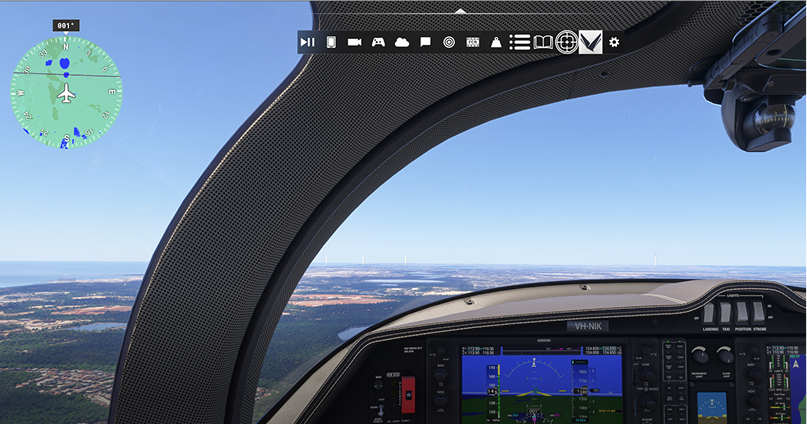
- Open the MSFS In-Game Toolbar (Hold RB and click L3 (press in left stick) to enter cursor mode and bring up the menu at the top of the screen)
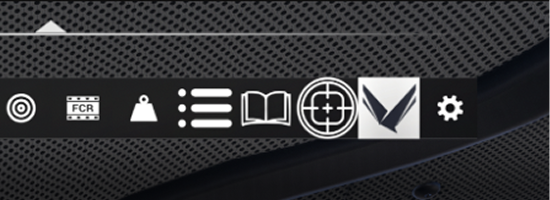
- Locate the Volanta icon (the 'V' logo) and select it.
- The Volanta Connection Window will appear on your screen.

Connecting your device
To link your Xbox flight to your external device, follow these steps:
-
On your Xbox:
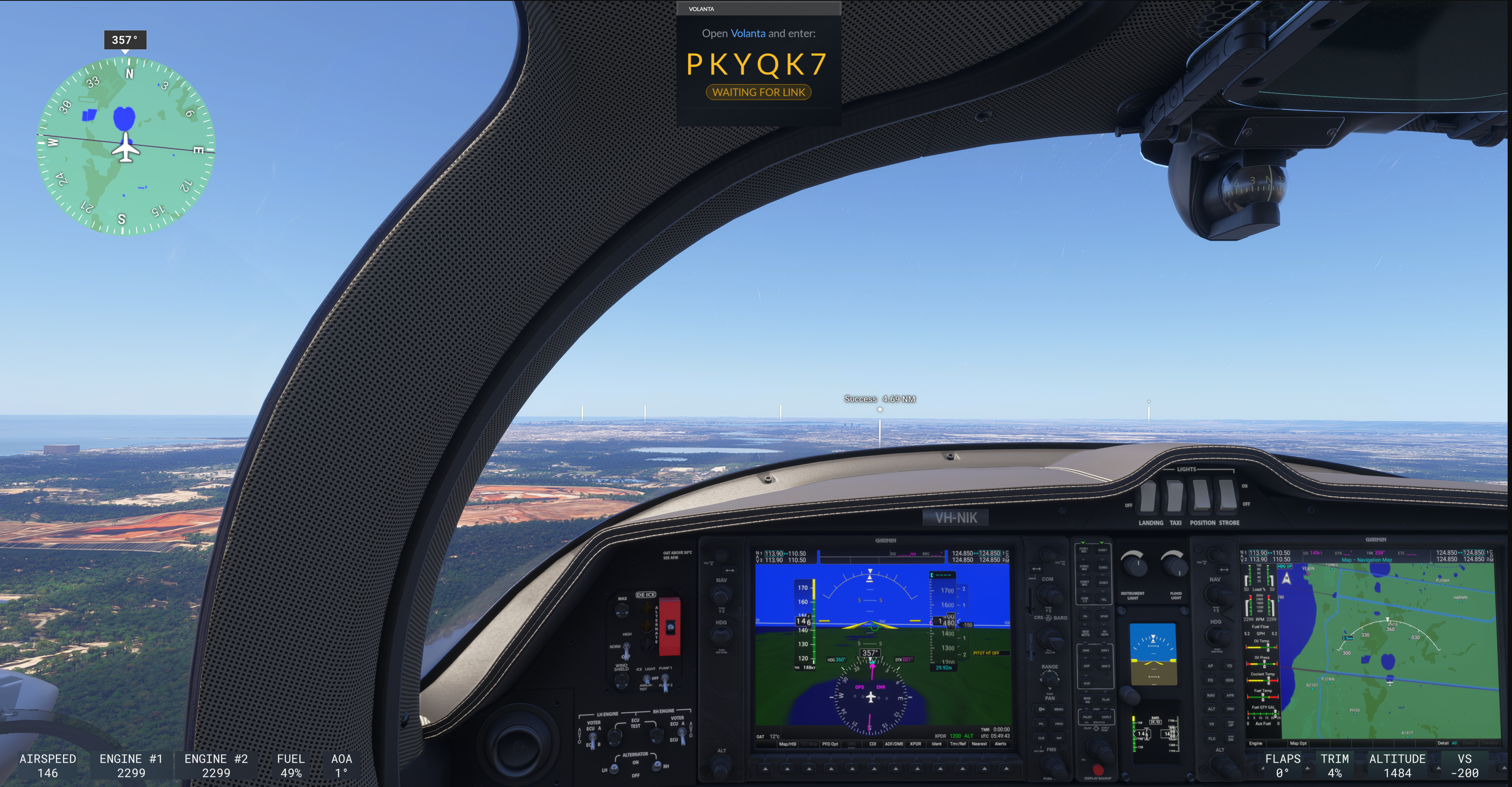 The Volanta window will display a Unique Connection Code. Enter the code displayed from within the simulator.
 -
On your Secondary Device:
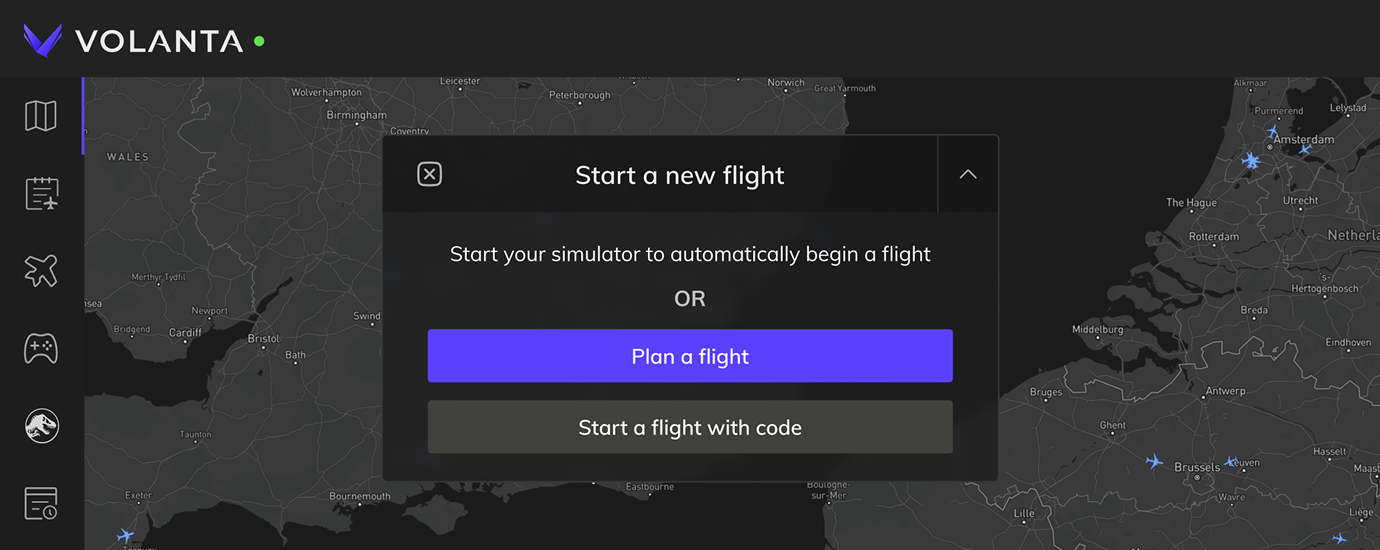 Click the button “Start a flight with code”.
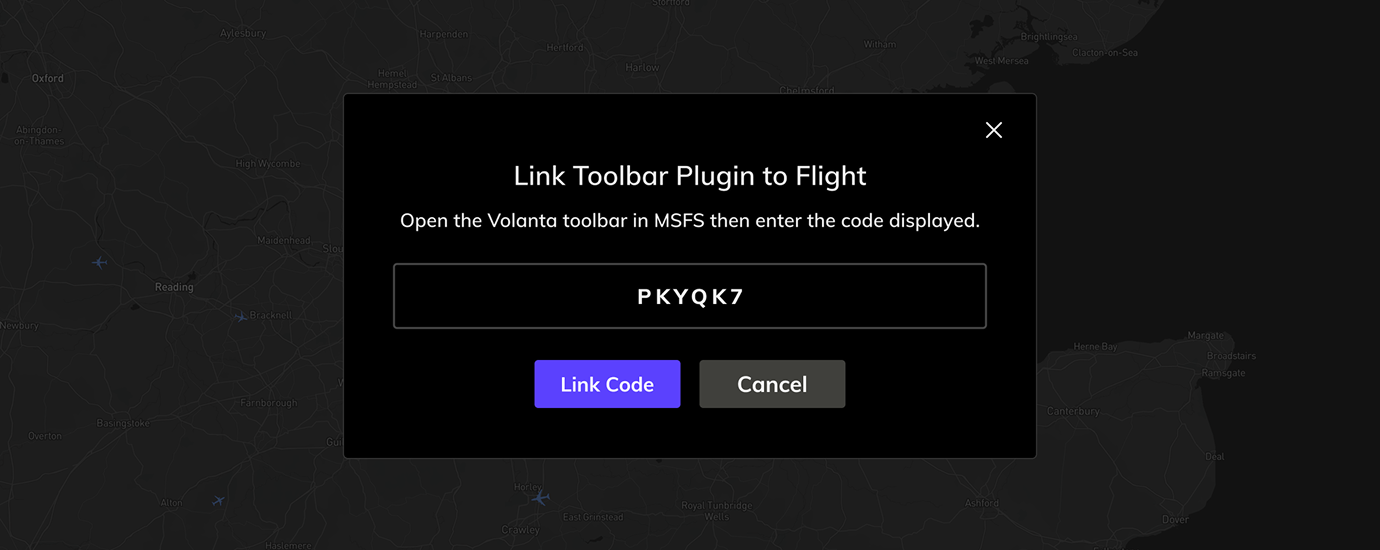 Enter the code displayed from within the simulator.
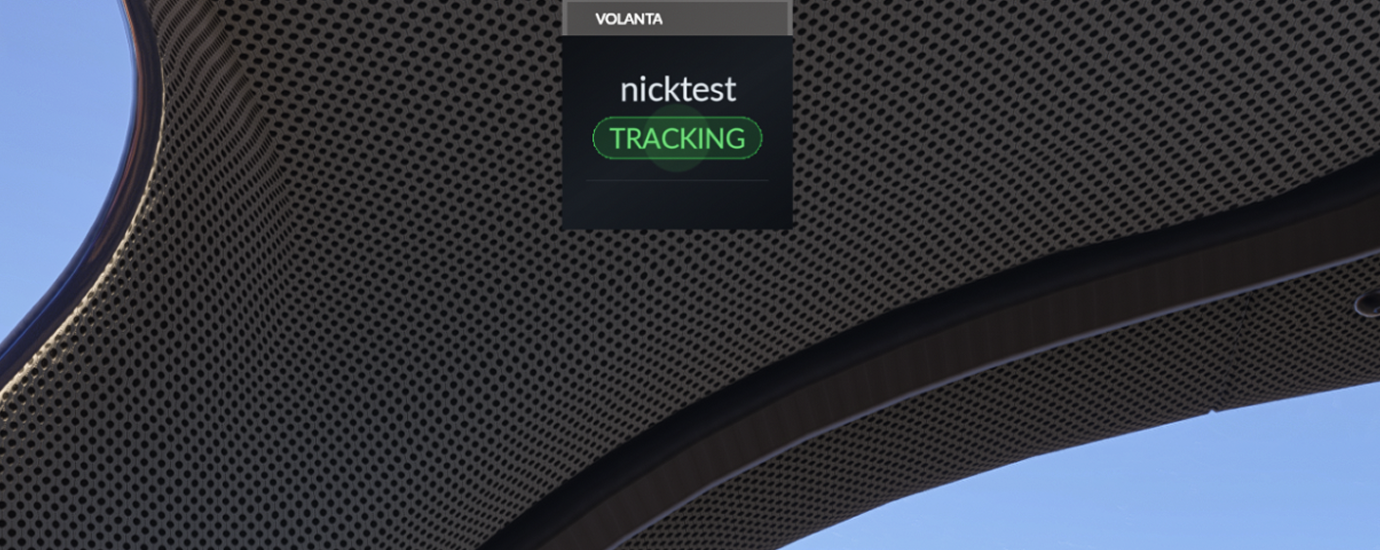 Once the code is entered, the status on your Xbox panel will change to "Tracking". Your aircraft position will now appear live on your secondary device's map.
Note:The Volanta tracking window in the game must remain open. You can move the Volanta window, as long as the window is active (displayed on screen), tracking will continue. You must perform these steps each flight or anytime you open the Tracking toolbar.
Troubleshooting
The Volanta Tracking Toolbar is still being developed, this version may have issues providing a consistent tracking experience and your feedback is vital to the development. Please let us know via Discord or Support ticket about your experience.
Tracking is slow

The tracking toolbar window is in the way, it's too small or too large
- We are assessing options to make it less intrusive but the experience changes depending on screen sizes and resolutions.
- Dragging the window off to the side or bottom of the screen can help obscure it. Connecting a computer mouse to your Xbox can make this easier if you are struggling with the controller. A mouse also makes it easier to resize the tracking window.
My code is not recognised
The toolbar shows “Link Error” or another error
- Check you can access fly.volanta.app on your network, Check your Xbox is online and has internet access.
- Contact Support.
Why do I need to pay?
- While Volanta on PC is free, the Marketplace version requires a one time fee, we have set this to the minimum allowed by Marketplace.

